How to Use Google Maps for Directions: A Patient Guide for Kiwis
- kxnath
- 3 days ago
- 13 min read
Imagine you are driving alone through the winding roads of the Waikato, and you realize you aren't quite sure where the next turn is. It's a common feeling, that little spark of anxiety when the screen looks cluttered with icons or you worry about your mobile data running out. Learning how to use Google Maps for directions shouldn't feel like a high-stakes test. It's actually more like having a patient friend sitting in the passenger seat who knows every corner of Aotearoa.
We know it's frustrating when technology feels too fast or too complicated. You deserve to feel safe and steady when you are out exploring our beautiful country. This guide is designed to help you master the app at your own pace. We will show you how to find local landmarks, how to save maps for those rural spots with patchy reception, and how to simplify what you see on your screen. We will even look at new tools like 3D views and AI assistants that make the journey clearer. By the end, you will have the confidence to go anywhere, from the Cape to the Bluff, with total peace of mind.
Key Takeaways
Understand how the "blue dot" acts as your personal guide on a digital atlas that always knows where you are.
Master the simple steps of how to use Google Maps for directions to find any local landmark, from the library to your neighborhood RSA.
Learn to choose the right travel mode so you feel safe and prepared whether you are driving or walking.
Gain peace of mind knowing the app will automatically and calmly fix your route if you ever miss a turn.
Discover how personalized support can help you build your digital confidence at your own steady, comfortable pace.
Table of Contents
What is Google Maps and How Does it Help You?
Think of Google Maps as a digital atlas that lives right on your phone. It's a supportive companion that replaces those bulky paper maps we used to keep in the glove box. To truly understand What is Google Maps, imagine a tool that updates itself constantly to show you the best path forward. Mastering how to use Google Maps for directions starts with realizing the app is there to serve you, not to make things harder. It's a way to regain your independence and explore with a sense of calm.
Whether you are driving to a new medical appointment in the city or exploring the coastal roads from Cape Reinga to the Bluff, the app has you covered. It maps every corner of Aotearoa with incredible detail. The main goal is to help you reach your destination without the stress of wondering if you've taken a wrong turn. It's about feeling safe, especially when you're out on the road by yourself. You don't have to worry about missing a sign when you have a guide that knows every street in the country.
To better understand this concept, watch this helpful video:
Finding the App on Your Device
The first step is simply finding the right icon on your screen. Look for a colorful "map pin" shape. It usually features bright shades of red, blue, green, and yellow. If you are an iPhone user, you might find our guide to setting up an iPhone helpful for organizing your apps so they are easy to find. For those with an Android phone, the app is often grouped together with other tools. Check inside a folder labeled "Google" to find it waiting for you. It's often pre-installed, so you likely already have it.
Understanding the "Blue Dot"
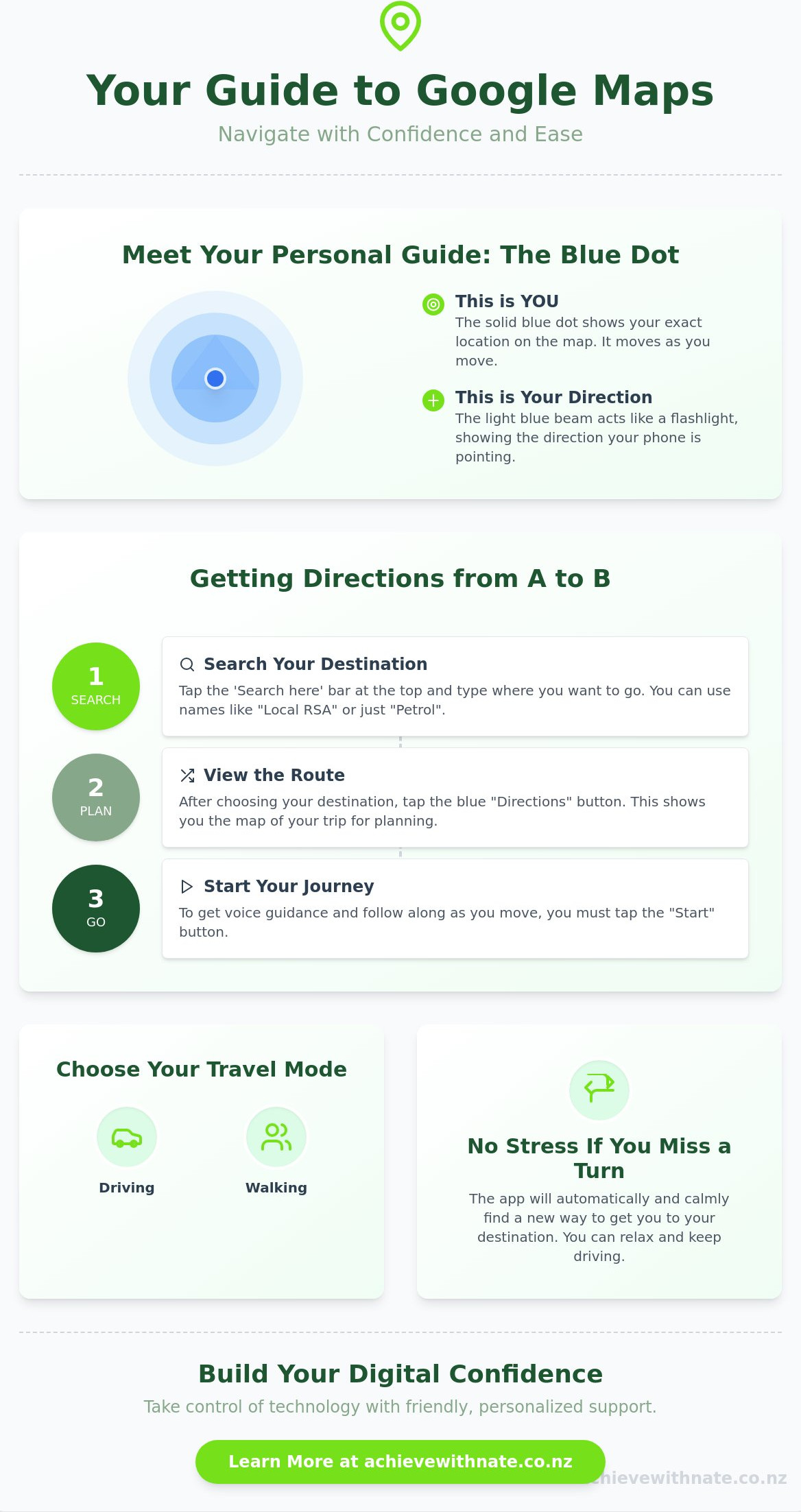
When you open the app, you'll see a small blue dot on the map. This dot represents your current physical location in the real world. If you move, the dot moves with you. Sometimes you might see a faint blue beam or "flashlight" shining out from the dot. This beam shows you which direction your phone is currently pointing. This makes it much easier to orient yourself when you're standing on a street corner or in a large car park. The blue dot is your "You Are Here" marker for the 21st century.
Learning how to use Google Maps for directions is a wonderful way to build your digital confidence. It gives you the freedom to visit new places without the old anxiety of getting lost. Take your time as you look at the screen. There is no rush, and every small step you take makes the next one feel even easier. We are here to help you find your footing in this digital world, one street at a time.
How to Get Directions from A to B
Getting started is often the part that feels most daunting. Once you have the app open, look at the very top of your screen. You will see a white bar that says "Search here." This is your starting point. You don't need to be a typing expert. You can type in the name of a place, like the "Auckland War Memorial Museum" or even just "Local RSA." As you type, the app will try to help by suggesting names below the bar. If you see the right one, just tap it with your finger. It's that simple.
After you pick a place, a blue button labeled "Directions" will appear. Tapping this shows you the plan for your trip. It's like looking at a map on the kitchen table before you leave. However, looking at the plan isn't the same as starting the journey. To hear the voice guidance and see your progress as you drive, you must tap the "Start" button. This is a common point of confusion. Remember: "Directions" is for planning, and "Start" is for moving.
Searching for Places Near You
Sometimes you don't have a specific address in mind. You might just need a cup of tea or some fuel. You can type "Coffee" or "Petrol" into that same search bar. The app will show you what is closest to you right now. This is a great way to learn how to use Google Maps for directions without the pressure of a long trip. Using the "Current Location" feature means you don't even have to type where you are starting from; the app already knows. Building these small skills helps you become more confident with your phone. If you want a bit more practice, this step-by-step guide to Google Maps is a lovely resource to keep handy.
Reading the Route Map
When the map appears, it might look like a lot of information at once. Focus on the thick blue line. This blue line is your "guiding thread" through the streets. It shows you exactly where to go. You might also see other colors on the screen:
Grey lines: These are alternative routes you could take if you prefer a different road.
Orange sections: This means traffic is a bit heavy, like a small backup near the local shops.
Red sections: This indicates a significant delay or a queue.
If these steps still feel a bit overwhelming, that is perfectly okay. Many of us feel this way when trying something new. You might find that one-on-one digital coaching helps you feel much more at ease as you learn how to use Google Maps for directions at your own pace.
Choosing How You Want to Travel
Once you have found your destination, you might notice a row of small icons sitting at the top of your screen. These represent the different "modes" of travel. Google Maps isn't just a tool for car trips. It is a versatile companion that adapts to however you choose to move through your day. Whether you are heading out for a gentle stroll through the Wellington Botanic Garden or catching a bus in Christchurch, selecting the right icon ensures the app gives you the most helpful advice for your specific journey.
If you are feeling a bit unsure about which icon to tap, you can refer to this official guide to navigating with Google Maps. It is a wonderful resource that lays out the basics in a very patient way. Learning how to use Google Maps for directions means choosing the path that makes you feel most comfortable and prepared. You are in control of the journey, and the app is simply there to support your choices.
Driving Directions and Avoiding Tolls
Driving is the most common way many of us use the app to get around. However, New Zealand has several toll roads that can be a bit of a surprise if you aren't expecting them. The Northern Gateway north of Auckland or the roads around Tauranga are good examples. You can actually tell the app to find a way around these so you don't receive an unexpected bill in the mail later. To do this, tap the three small dots in the top corner of your screen, select "Route options," and then switch on the setting that says "Avoid tolls." It is a small adjustment that provides a lot of emotional and financial peace of mind.
Walking and Public Transport
If you decide to leave the car at home, the walking mode is a brilliant feature. Instead of the solid blue line we discussed in the previous section, you will see a blue dotted line. This dotted line shows you paths, alleyways, and shortcuts that cars simply cannot take. It is a perfect tool for exploring city centers or local parks without the fear of getting turned around. You can focus on the beautiful scenery instead of worrying about the next street sign.
The public transport mode is equally helpful for those using buses or trains in our major cities. It shows you exactly which bus number to look for and what time it is expected to arrive. One of the most reassuring parts is that it counts the stops for you. You can look at your screen and see exactly how many stops are left before you need to stand up and get off. This takes all the guesswork out of using public transport in an unfamiliar area. If trying these different modes feels like too much to handle on your own, our one-on-one digital coaching is a gentle way to practice these skills until they feel like second nature.
What to Do if Things Go Wrong
One of the biggest fears when learning how to use Google Maps for directions is the moment you miss a turn. You might feel a sudden jolt of panic or worry that you've ruined the whole trip. Please take a deep breath. If you miss a street or take the wrong exit, you don't need to do a thing. The app is designed to look after you. It will simply look at where you are now and find a new way to get you back on track. Within a few seconds, the map updates itself and provides a fresh instruction.
The voice guidance will stay calm and steady. It won't shout or sound annoyed. In fact, the app never gets frustrated or impatient with you, no matter how many times you might need to adjust your path. If you ever feel truly overwhelmed by the traffic or the screen, the best thing to do is find a safe place to pull over. Once the car is parked, you can look at the map without any pressure. You are in charge, and you can take all the time you need to feel settled again.
Using Maps Without Mobile Data
New Zealand is full of beautiful, rugged spots like the Coromandel where mobile phone signals can be a bit hit-and-miss. You might worry about losing your map right when you need it most. To avoid this, you can use "Offline Maps." Before you leave home, go to your profile menu in the app and select "Offline maps." This lets you download a specific area directly to your phone. It saves your mobile data and keeps working even if you find yourself in a valley with zero reception. It is a wonderful way to ensure you always have a digital atlas in your pocket, regardless of the signal strength.
Adjusting the Voice Volume
Sometimes the voice can be a bit too quiet to hear over the radio, or perhaps it's so loud it feels distracting. You can easily change this using the physical buttons on the side of your phone, just like you would when making a phone call. If the talking becomes too much, look for the small "Speaker" icon on the map screen. Tapping this allows you to mute the voice entirely so you can just follow the visual path. If you want to feel even more comfortable with these types of settings, you might enjoy our guide on Android basics. It covers many of these simple controls in a way that feels manageable and clear.
Learning how to use Google Maps for directions is a journey in itself. If you would like someone to sit with you and show you these features in person, our one-on-one digital coaching is the perfect place to start your learning without any stress.
Building Your Digital Confidence with Nate
Learning a new app is a journey, not a race. We understand that the digital world can feel like it's moving at a hundred miles an hour. It's completely natural to feel a bit overwhelmed when you first look at a screen filled with icons and lines. You deserve to take your time. You deserve to ask questions without feeling like you are being a bother. At the Achieve With Nate Movement, we believe that technology should serve you, not the other way around. We are here to act as your supportive companion as you find your footing.
You don't have to do this alone. While guides are helpful, sometimes having a real person sitting beside you makes all the difference. Our one-on-one digital coaching is designed to be the antidote to tech stress. We provide a criticism-free environment where you can practice until you feel steady. Mastering how to use Google Maps for directions is a wonderful way to start. It is a practical skill that gives you immediate freedom and safety when you are out in our beautiful country.
Personalized Navigation Coaching
Our sessions are entirely focused on what you need. We can sit together at your kitchen table and practice setting a route to your favorite local cafe or the library. We help you understand the "why" behind the buttons. Instead of just memorizing steps, you will learn the logic of the app in a way that actually makes sense to you. This approach builds a foundation of true understanding. If you want to see how we help our community, take a look at our Digital Confidence Coach NZ services. The Achieve With Nate Movement focuses on neighborly kindness and professional coaching that respects your pace.
Taking the First Step
The best way to build confidence is to start small. You might try using the map to find a place you already know well, like your local supermarket. This lets you see how the app works in a familiar setting without any pressure. Once you feel comfortable with the basics of how to use Google Maps for directions, you will find that other apps start to feel less intimidating too. It is all about taking incremental, manageable actions that lead to a sense of empowerment.
We are ready to help you turn tech anxiety into tech confidence. Whether you want to master navigation or just feel more at ease with your device, we are here for you. You can visit our expression of interest page to start a conversation. Let's work together to make sure you feel safe, seen, and supported as you explore the digital world. You've got this, and we've got you.
Ready to Explore Aotearoa with Confidence?
You have seen that Google Maps is more than just a complicated app. It is a supportive digital atlas that looks after you, even if you miss a turn or lose your signal in the rural heart of New Zealand. Knowing how to use Google Maps for directions gives you the freedom to visit family, find local landmarks, and explore new places without the old fear of getting lost. It is about feeling safe and steady every time you get behind the wheel or step out for a walk.
Learning these skills takes time and a little bit of practice. You don't have to struggle with confusing icons or technical jargon on your own. We offer patient, one-on-one coaching for Kiwis who want to master their technology without the pressure. Our sessions focus entirely on your digital confidence and safety, using plain English that actually makes sense. Master your phone without the stress; book a session with Nate today.
Take your time and remember that every small step you take makes the digital world feel a lot more welcoming. You are doing a great job, and we are here to support you every step of the way.
Common Questions from Fellow Learners
Is Google Maps free to use in New Zealand?
Yes, the app is completely free to download and use on your device. Google doesn't charge a subscription fee for looking up locations or using the navigation features. You can explore every corner of the country without worrying about a hidden bill. Just keep in mind that using it while you're away from home will use a small amount of your phone's mobile data plan.
How much mobile data does Google Maps use for directions?
It uses a very small amount of data, usually around 5 megabytes for an hour of driving. This is a tiny portion of most monthly data plans. If you're feeling anxious about costs, you can download your route while you're still on your home Wi-Fi. This simple step allows you to use the map for zero data while you're out on the road.
Can I use Google Maps if I don’t have a car?
Absolutely. The app is a wonderful companion for walking, cycling, or taking the bus. When you look for a place, you can tap the little "Walking" icon to see a dotted path through parks and city centers that cars can't reach. It even provides up-to-date bus and train times for our major cities, helping you feel steady and prepared for any journey.
What happens if my phone battery dies while I am using the map?
The navigation will stop immediately if your phone turns off. To stay safe, it's a good idea to keep your phone plugged into a car charger during your trip. If your battery does die, don't panic. Find a safe spot to pull over and wait until you can get some power back into your device. Having a paper map in the glove box is always a nice backup for peace of mind.
How do I save my home address so I don’t have to type it every time?
You can save your "Home" location in the app's settings so it's always ready for you. Once it's set, you can just tap one button to see how to use Google Maps for directions back to your own front door. This is a great way to reduce stress when you're tired and just want to find the easiest way home after a long day out.
Can Google Maps show me where the nearest public toilets are?
Yes, it can be a real lifesaver when you're traveling through unfamiliar towns. Simply type "public toilets" into the search bar at the top of the screen. The app will show you the closest options and even tell you if they are currently open. It's a practical way to feel more comfortable when you're exploring a new part of our beautiful country.
How do I make the map voice talk in a different accent?
You can change the voice in the "Navigation settings" menu within the app. While the default voice is very clear, some people find it more comforting to pick a different regional accent that feels more familiar. It's your digital passenger, so you should choose a voice that makes you feel most at ease while you're listening to the instructions.
Is it safe to use Google Maps while I am driving?
It is safe as long as you rely on the voice instructions and keep your eyes on the road. Always type in your destination before you start the car. In New Zealand, it's important to remember that holding your phone while driving is against the law. Using a hands-free holder on your dashboard is the best way to stay safe, legal, and focused on your surroundings.

Comments